dateMnemonics
Reference
- The dateMnemonics is utility designed to interpret and manipulate date-related mnemonics (short, symbolic representations of dates) in a specific timezone. .
- It provides functionality to calculate dates dynamically based on user-defined mnemonics and operations.
- Date mnemonic is represented using the ‘$’ sign.
- For example “$StartOfToday()” means date value should start from today’s date
Note
- Date Mnemonic is a Admin only feature. (Can be configured only in admin for Date/DateTime Attribute)
Key Function
parseDate(dateString, timezone):
- Parses a date string or interprets it as a mnemonic if it's not a valid date.
- It returns utc date string.
Supported Mnemonics and Operations
-
Mnemonics:
StartOfToday: Start of the current day.StartOfWeek: Start of the current week (Monday).StartOfMonth: Start of the current month.StartOfYear: Start of the current year.
-
Operators:
+: Add time.-: Subtract time.
-
Specifiers:
d: Days.w: Weeks.m: Months.y: Years.
Use Cases
-
Dynamic Date Filters:
- Use mnemonics to define dynamic date ranges for filtering data (e.g., "Last 7 days", "Next month").
-
Scheduling:
- Automatically calculate dates for tasks or events based on relative timeframes.
-
Reporting:
- Generate reports for specific periods (e.g., "Start of the current week to today").
-
Timezone-Sensitive Applications:
- Ensure date calculations respect the user's timezone.
Troubleshooting
- check if valid arguments are passed to parseDate function
Example Usage
Parse a Date String or Mnemonic
const { protrakUtils }
= React.useContext(customWidgetContext);

const { parseDate } = protrakUtils;

const result1 = parseDate('2025-04-01T00:00:00Z', 'UTC');
console.log(result1); // Outputs: '2025-04-01T00:00:00Z'

const result2 = parseDate('StartOfYear(+1y)', 'UTC');
console.log(result2); // Outputs the UTC date for the start of the next year.
Allowed Date Mnemonics for Between Condition are as follows:
- $StartOfToday() Between $StartOfToday(+2d)
- $StartOfYear() Between $StartOfYear(+1y)
- $StartOfMonth() Between $StartOfMonth(+2w)
- $StartOfToday() Between $StartOfToday(-2d)
- $StartOfWeek() Between $StartOfWeek(+7d)
- $StartOfYear() Between $StartOfYear(+2y)
- $StartOfMonth() Between $StartOfMonth(+2w)
- $StartOfToday() Between $StartOfToday(-2d)
- $StartOfWeek() Between $StartOfWeek(+2d)
- $StartOfMonth() Between $StartOfMonth(+3w)
- $StartOfYear()  Between $StartOfYear(+3y)
- $StartOfToday() Between $StartOfToday(+3d)
Example 1:
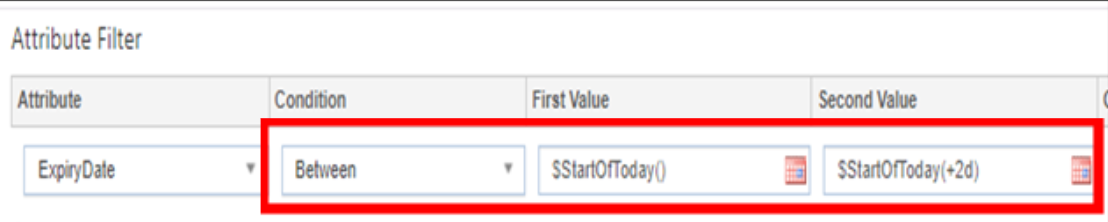
$StartOfToday() Between $StartOfToday(+2d)
Admin: Go to Dashboard Layout of any type: Set Attribute Filter as:
- Attribute: Select a Date Type Attribute
- Condition: Between
- First Value: $StartOfToday()
- Second Value: $StartOfToday(+2d)
- (Note: You need to Copy the Date Mnemonics value and then paste it in the respected value box.)
- Save the layout.
App: Go to the same Type Dashboard Layout for which filter is configured in admin.
The filter is applied, and instances are visible starting from today to next 2days. You can check the filter in dashboard filter option

Example 2
$StartOfToday() Between $StartOfToday(-2d)
Admin: Go to Dashboard Layout of any type: Set Attribute Filter as:
- Attribute: Select a Date Type Attribute
- Condition: Between
- First Value: $StartOfToday(-2d)
- Second Value: $StartOfToday()
- (Note: Between the 2 dates, preceding/prior date should always be in the First Value Box.)
- Save the layout.

App: Go to the same Type Dashboard Layout for which filter is configured in admin. The filter is applied, and instances are visible accordingly. You can check the filter in dashboard filter option
