Reference Attribute
Overview
Reference attributes allow you to create relationships between different entity types by linking one instance to another. Reference attributes can be used to model complex relationships beyond basic linking, such as hierarchical (parent-child) structures and dynamic associations that change based on business logic.
Usage Contexts
Reference attributes are versatile and can be configured in multiple contexts throughout the Protrak platform:
Layouts
- Create Layouts: Allow users to select references when creating new instances
- Edit Layouts: Enable modification of reference relationships in existing instances
- View Layouts: Display reference relationships in read-only format
Widgets
- Worksheet Widget: Support both inline editing and insert new row functionality
Configuration
Reference attributes require specific configuration to define the relationship and control how users can interact with the referenced data.
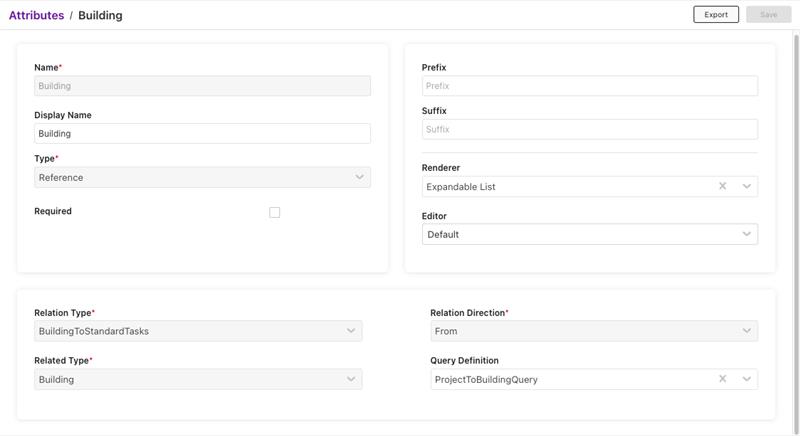
Key Configuration Fields
| Field | Description | Required |
|---|---|---|
| Relation Type Name | Defines the type of relationship between entities | Yes |
| Related Type Name | The entity type that this reference points to | Yes |
| Relation Direction | Specifies direction: Source to Destination or Destination to Source | Yes |
| Query Definition | Defines filters and dependencies for dynamic option lists | No |
| Editor | Default, Dropdown | No |
| Renderer | Default, Expandable List | No |
Query Definition Configuration
For advanced filtering and dependent reference behavior, you can configure Query Definitions using the Query Builder:
- State Filters: Restrict available options based on instance state
- Attribute Filters: Filter options based on attribute values
- Parent Filters: Create dependent references where options change based on other field values
Note: Query definitions can be configured in the Query Builder node to create complex filtering logic for reference attributes.
Editors and Renderers
For details see Editors and renderers for reference attribute.
Basic Reference Behavior
When no Query Definition is configured, reference attributes display all available instances of the related type.
Standard Features:
- Search: Type to search through available options
- Pagination: Automatic loading of results in chunks
- Create New: Add new instances directly from the reference field (if enabled)
- Link Existing: Select from existing instances
- Multi-select: Select multiple references when enabled
User Interactions:
- Search: Users can type to filter available options
- Select: Click to select one or more references
- Create: Use the "+" button to create new related instances
- Link: Use the search button to browse and select from existing instances
Dependent Reference Attributes
Note: Dependent reference functionality is available in create, edit, view layouts and worksheet widgets. Dependent references change their available options based on values in other fields, creating dynamic, context-aware selection lists.
How It Works:
- Parent Field Configuration: Define which field(s) the reference attribute depends on
- Static Filtering: When Dynamic Value is false in Query Builder, options are filtered by the selected parent instance ID.
- Dynamic Filtering: Options automatically filter when parent field changes
- Real-time Updates: Selection list updates immediately when dependencies change
- Validation: Ensures data integrity by restricting invalid combinations
For more details, see Dependent Reference Attributes.
Testing Checklist and Validation
Basic Reference Testing
- Options load correctly from related type
- Search functionality works with large datasets
- Pagination handles large result sets
- Create and Link buttons work when enabled
- Multi-select vs single-select behavior is correct
- Validation prevents invalid selections
Dependent Reference Testing
- Query Definition filters (state, attribute, parent) are applied
- Parent field changes trigger dependent field & options list updates
- Dependent field clears when parent value changes
- No parent value shows all options
- Performance is acceptable with large datasets
Troubleshooting
-
No Options Appearing:
- Check Query Definition filters
- Verify user permissions on related type
-
Dependent Reference Not Updating:
- Verify parent filter configuration
- Check dynamic parameter mapping
- Ensure selected parent field value has linked instances
-
Permission Problems:
- Check edit/create/link permissions
- Ensure proper role assignments